Back to appAppointment

APPTENANT · FOR SERVICE BUSINESSES

From the first booking to a well-organized day.

A workspace for independent professionals and service businesses to manage appointments, availability and client relationships. Start with bookings you enter yourself, then offer online booking through AppClient when you are ready.

AppTenant
  1. Plan

    Services, hours and availability

  2. Book

    Your calendar or online requests

  3. Stay in touch

    Reminders and appointment messages

How it works

Three ways to put AppTenant to work

Choose the workflow that fits your business today. Manual scheduling works on its own; publishing a profile adds a booking path for clients.

1. Book a client yourself

For a phone call, an in-person request or a client who does not use AppClient.

  1. Set up your services

    Name each service, describe it and set its duration so bookings have a clear purpose and length.

  2. Find a time

    Use the calendar to review appointments, working hours, breaks and blocked time.

  3. Create the appointment

    Choose the client and service, enter the time and add the details you need for the visit.

  4. Keep the record together

    Reopen the booking from the calendar or client record to update it and review its history.

An organized calendar without requiring a website or an AppClient account for every client.
2. Let clients request an appointment online

Make your services and available times discoverable through a published company profile.

  1. Prepare the profile

    Add your company details, public contact information and services. Choose who can see you in the catalog.

  2. Open your availability

    Set working days, breaks and how far ahead clients can book. Existing bookings and blocked periods limit available time.

  3. Receive a request

    Clients explore your profile and choose a service and available time in AppClient.

  4. Manage the booking

    Review the appointment in AppTenant and follow the applicable approval and client confirmation settings.

The business and client work with the same appointment through their respective apps.

3. Keep everyone ready for the visit

Use clear rules and relevant updates from booking until the appointment.

  1. Apply your rules

    Use confirmation and cancellation policies that explain what the client can do and when.

  2. Schedule reminders

    Choose client reminders and your own reminders separately, with timing that suits your work.

  3. Talk in context

    For clients using AppClient, keep appointment messages alongside the booking they refer to.

  4. Handle changes

    Update or cancel a booking when plans change, then review its current status and change history.

Appointment details, communication and the record of changes stay easy to find.

All features

The tools behind your working day

Explore what you can configure, what clients can do and how the pieces work together. Each section describes an available part of AppTenant.

Calendar and agenda

See the shape of your schedule and open the appointment you need without working through a separate client list.

  • Use day, week and month calendar views for different planning horizons, or the agenda for a list of upcoming work.
  • Review booked periods alongside your working schedule and blocked time before choosing a slot.
  • Open an appointment to inspect its details, client and current status.

Appointment management

Create bookings for your clients and keep their details current as plans change.

  • Select the client, service and scheduled time when creating an appointment; keep relevant notes with the record.
  • Edit or reschedule existing appointments and cancel them when the visit will not go ahead.
  • Follow business approval and client confirmation as separate parts of the booking process.
  • Open the appointment history when you need to understand a change instead of relying on memory.

Your service catalog

Give clients a clear understanding of what they are booking and how much time it needs.

  • Maintain service names, descriptions and durations.
  • Arrange services in the order that makes sense for your business.
  • Disable a service you no longer offer. Services already used by appointments retain their history rather than being deleted.

Working hours, breaks and booking windows

Shape online availability around the way you actually work.

  • Choose working weekdays and start/end times, then add work breaks on the days they apply.
  • Use blocked periods for time that should not be offered for appointments.
  • Set the earliest booking time and how far into the future clients may book, using the available hour, day, rolling-window or fixed-date settings.
  • Company time zone settings govern the business schedule; your personal display time zone is a separate preference.

Client records and visit history

Keep the information you need for each relationship in one place.

  • Create and edit contacts with a name, phone number, email and notes.
  • See future and past appointments from the client record and open the relevant booking.
  • Keep company-specific contact details distinct from the public details shared by an AppClient user.
  • Use active or disabled status to manage the client list without losing its context. Manual bookings do not require a client account.

Public company profile and online booking

Choose when and how your business becomes visible to clients.

  • Maintain the company information and public contacts that clients use to understand and reach your business.
  • Choose catalog visibility for everyone or for signed-in active company clients.
  • A public company page needs valid public phone, email or address information; a website link alone is not enough.
  • Publication is optional. An unpublished company is not available for new online appointments, while you can continue working in AppTenant.

Confirmation and cancellation policies

Turn your booking rules into reusable settings instead of explaining them from scratch for every appointment.

  • Choose whether client confirmation is required and set timing in hours or calendar days before the visit.
  • When appropriate, choose automatic confirmation or automatic cancellation for missing confirmation; these are alternative actions.
  • Set a cancellation deadline and optionally prevent client cancellation after confirmation.
  • An appointment keeps the policy version assigned to it. Editing a default policy does not silently replace the rules on existing appointments.

Reminders for clients

Build a reminder policy around the moments when a client needs to prepare.

  • Add up to three reminder rules to a policy and set each one in hours or calendar days before the appointment.
  • Choose email or the AppClient Notification Center for each rule.
  • Use reusable defaults and keep the assigned policy version attached to the appointment.
  • Confirmed appointments can still receive reminders. Cancelled appointments are excluded.

Your notifications and appointment reminders

Decide how you want to hear about bookings and which reminders help you prepare.

  • Configure notifications for new appointments, confirmations, cancellations and messages.
  • Receive a daily summary of today’s appointments by email or connected Telegram, at your selected delivery hour in the company time zone.
  • Choose Email, Notification Center or Telegram where available; Telegram notifications require a connected Telegram account.
  • Set up to three personal appointment reminders independently of client reminder policies, with your chosen timing and channels.
  • Your reminders also cover manually created appointments whose clients do not have AppClient accounts. Calendar-day timing follows the company time zone.

Messaging linked to appointments

Keep a question about a visit attached to the visit itself.

  • Exchange messages with clients who use AppClient from the appointment context.
  • Return to the conversation with the booking details close at hand.
  • Choose message notification channels in your notification settings so you know when there is an update.

Appointment change history

Understand how a booking reached its current state.

  • Open the appointment audit view for a timeline of recorded changes.
  • Review when changes happened and the details available for each event.
  • Use this history alongside the current appointment and messages when checking a reschedule or status update.

Connected calendars, Gmail and Telegram

Connect the tools you already use when they fit your workflow.

  • Connect Google Calendar to synchronize tenant bookings with calendar events.
  • Enable a read-only ICS calendar subscription for compatible calendar apps. Refresh timing depends on the receiving app.
  • Manage your calendar subscription link, including regenerating it when needed.
  • Connect Gmail for appointment-related email and Telegram for supported notifications. Manage these connections in Connected Apps.

Company and personal settings

Keep your public business details and your own account preferences separate.

  • Update company information and publication settings in the company workspace.
  • Manage your personal name and time zone, including the browser time zone option.
  • Changing your user time zone does not change the company schedule or its booking rules.
  • Manage your password and email confirmation from account settings.

Inside the app

A closer look inside AppTenant

Real screens from the app, using demonstration settings. Open an image to inspect the details. These captures show the English interface; the descriptions below are available in both languages.

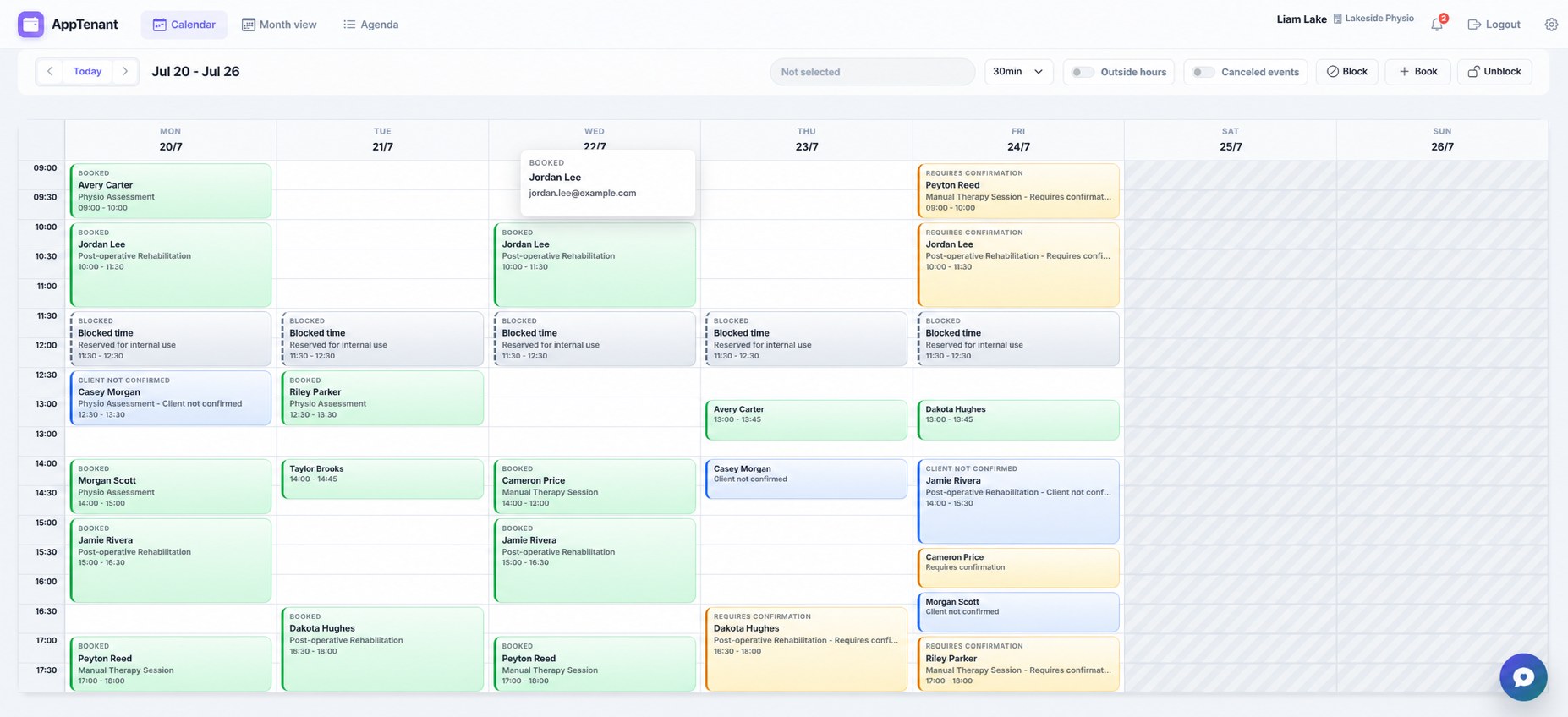
AppTenant weekly calendar showing appointments arranged by day and time

Your week at a glance

Move between planning views and open a booking directly from the calendar.

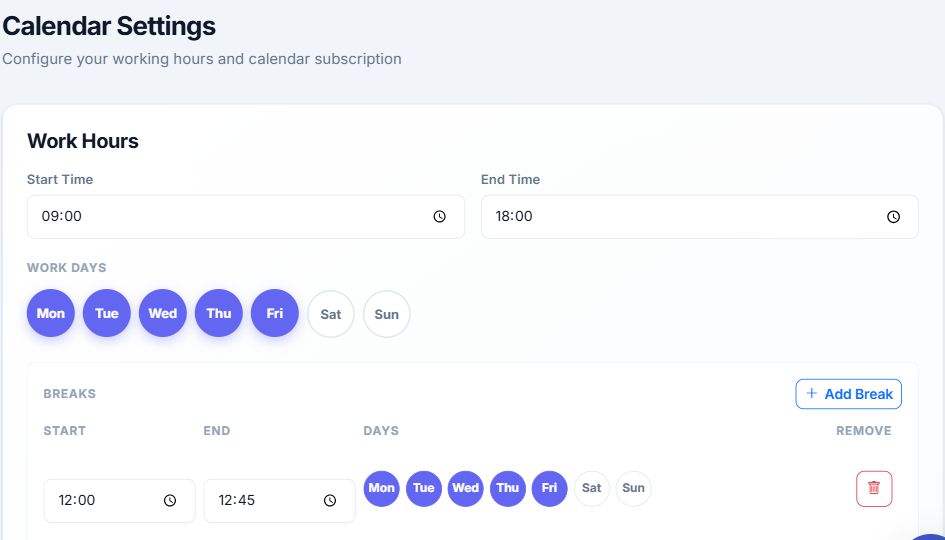
AppTenant calendar settings with weekday working hours and a configured work break

Availability that matches your hours

Set working days, opening hours and breaks in Calendar Settings.

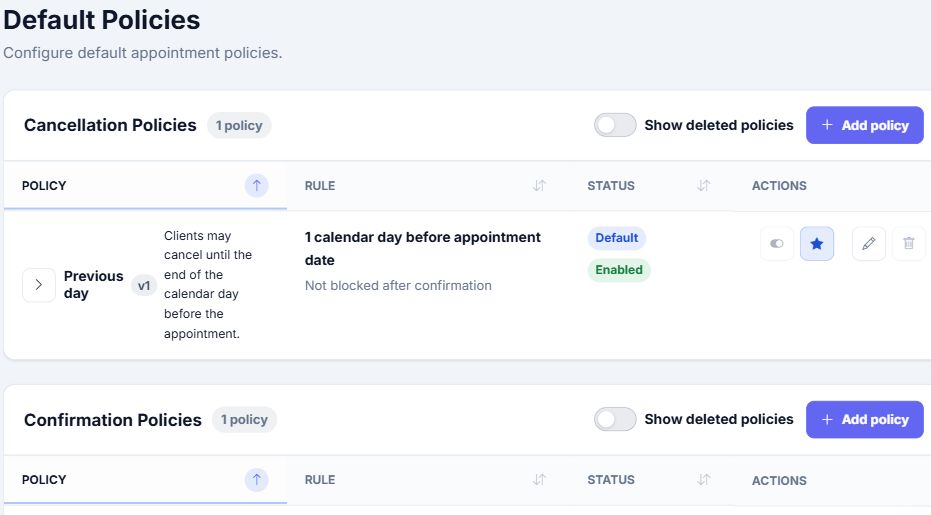
AppTenant default policies screen with cancellation and confirmation policy sections

Clear rules for every booking

Manage reusable cancellation and confirmation policies in one place.

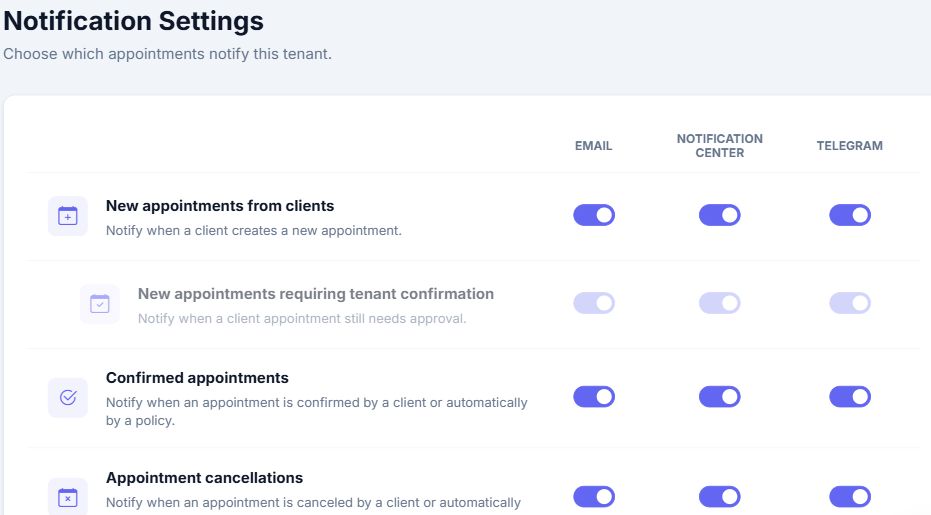
AppTenant notification settings with Email, Notification Center and Telegram channel controls

Choose how you stay informed

Select notification channels for the appointment events that matter to you.

Questions

Questions before you start

Can I use AppTenant without a website or AppClient?

Yes. You can manage services, contacts and appointments directly in AppTenant. Clients do not need an AppClient account for you to create their bookings. AppClient adds the client-facing online booking and messaging workflow.

Do I have to publish my company?

No. Publication is optional. You can start with manual scheduling and publish your company profile when you want clients to find you and request appointments online.

What is the difference between approval and confirmation?

Business approval and client confirmation are separate parts of an appointment. Configure your confirmation policy to decide whether the client must confirm and what happens if confirmation is missing.

Will a new default policy change existing appointments?

An appointment retains the policy version assigned to it. Updating the default does not automatically replace the rules on existing appointments.

Are client reminders the same as my reminders?

No. Client reminder policies and your personal appointment reminders are configured separately. Your reminders can also apply to manually booked visits without an AppClient account.

Which calendar connection should I use?

Google Calendar integration synchronizes bookings with calendar events. An ICS subscription provides a read-only calendar feed for compatible apps, with refresh timing controlled by the receiving app.

Start with your next appointment.

Create your account, add your services and set your working hours. You can introduce online booking when it suits your business.

Back to appAppointment

AppTenant is the business workspace in appAppointment. AppClient is where clients find providers and manage their visits.

appAppointment · AppTenant